Totemomail license limit reached: clean up orphaned users via LDAP
Disabled AD accounts remain in totemomail and continue to consume licenses. With a verified LDAPS connection and the Cleanup Agent, Active Directory becomes the authoritative source.
The “The licensed user limit has been reached” message does not mean mail flow stops immediately. It indicates under-licensing. In long-running environments, the cause is usually not sudden growth but former employees: the AD account was disabled, the internal user in totemomail remained, and it continues to consume a license.
The sustainable solution is regular LDAP synchronization with Active Directory. The following steps set up the connection and the Cleanup Agent and verify the entire path before the first production run. Host names, DNs, and service accounts with example.com are placeholders and must match your own environment.
Which users consume a license
Totemomail distinguishes between two user classes. Only internal users count toward the license limit.
| User type | Description | License-relevant |
|---|---|---|
| Internal Users | Users in your own organization who send and receive encrypted messages | Yes |
| External Users | External communication partners (WebMail, PDF, S/MIME, PGP) | No |
An internal user is created as soon as they communicate through the gateway for the first time. This happens automatically. Removal, however, does not: when an employee leaves the organization, you usually disable the AD account. The totemomail entry remains. Over the years, orphaned accounts accumulate and continue to consume licenses.
Status display
You can find the current status under Settings → Overview → User Information.
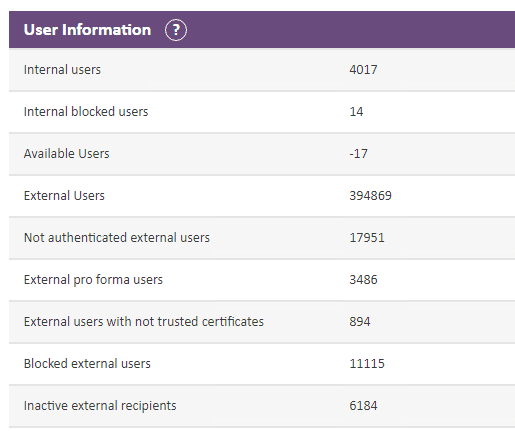
Available Users is set to *-17*. The 4,017 internal users exceed the lower number of licensed seats.
The important lines:
-
Internal users (
4017): created internal users -
Internal blocked users (
14): blocked but still license-relevant -
Available Users (
-17): available licenses; a negative value indicates under-licensing
As soon as Available Users falls below zero, you see the warning at the bell:

“The licensed user limit has been reached.” Mail flow continues, but the message remains permanently visible.
Important: under-licensing does not block mail flow. It is a licensing status, not a technical one. You therefore have time for a clean solution, but should not ignore the condition permanently.
From immediate action to a lasting solution
Manual deletion
You can search for and delete internal users individually under Internal Users. This resolves the immediate situation, but the problem returns after a few months. With several thousand accounts, this is not practical.
LDAP integration with Cleanup Agent
The robust approach is integration with Active Directory via LDAP. An agent regularly compares internal users with the directory and removes or disables accounts that no longer exist in AD. This makes AD the authoritative source, and your offboarding process in AD takes care of license hygiene at the same time.
LDAP fundamentals
| Term | Meaning |
|---|---|
| DN (Distinguished Name) | Unique path to an object, for example CN=John Doe,OU=Users,DC=corp,DC=example,DC=com |
| Base DN / Search Base | Root of the search, for example DC=corp,DC=example,DC=com |
| Bind DN | Account that totemomail uses to authenticate to AD |
| Filter | LDAP search expression, for example (&(objectClass=user)(sAMAccountName=jdoe)) |
Ports
| Port | Protocol | Use |
|---|---|---|
| 389 | LDAP | unencrypted / STARTTLS |
| 636 | LDAPS | LDAP over TLS |
| 3268 | Global Catalog | forest-wide search, unencrypted |
| 3269 | Global Catalog SSL | forest-wide search over TLS |
In a single-domain environment, port 636 to a Domain Controller is sufficient. If you operate a forest with multiple domains, only the Global Catalog (port 3269) provides forest-wide results. A DC on port 636 knows only the objects in its own domain and responds to searches outside its partition with a referral—a detail that is often overlooked in multi-domain environments.
userAccountControl
Whether an AD account is disabled is stored in the userAccountControl bit field. The ACCOUNTDISABLE flag has the value 2. Use the LDAP matching rule 1.2.840.113556.1.4.803 (LDAP_MATCHING_RULE_BIT_AND) to evaluate individual bits:
# Aktive Benutzer
(&(objectClass=user)(!(userAccountControl:1.2.840.113556.1.4.803:=2)))

# Deaktivierte Benutzer
(&(objectClass=user)(userAccountControl:1.2.840.113556.1.4.803:=2))
Step 1: Service account in AD
For the integration, create a dedicated account with read-only permissions. Do not use an administrator account. The bind user only needs to be able to read AD.
New-ADUser -Name "svc-totemomail-ldap" `
  -SamAccountName "svc-totemomail-ldap" `
  -UserPrincipalName "svc-totemomail-ldap@corp.example.com" `
  -Path "OU=Service Accounts,DC=corp,DC=example,DC=com" `
  -AccountPassword (Read-Host -AsSecureString "Passwort") `
  -PasswordNeverExpires $true `
-Enabled $trueA regular domain user can already read AD, so the account needs no additional permissions. For the password, use a long, random value stored in your password vault.
If your security policy calls for it, you can also use a gMSA (Group Managed Service Account). However, totemomail expects a Bind DN and password, which is why a traditional service account with PasswordNeverExpires is generally used in practice.
Step 2: Verify the LDAP connection on the command line
Before configuring anything in totemomail, verify the LDAP connection on the command line. This is the step most people skip. If ldapsearch works, the integration in totemomail will work as well. If the test fails, you at least know where it is failing rather than guessing in the totemomail GUI.
2.1 Port check
On Linux, for example from the totemomail appliance:
nc -vz dc01.corp.example.com 636
nmap -p 389,636,3268,3269 dc01.corp.example.comOn Windows with PowerShell:
Test-NetConnection -ComputerName dc01.corp.example.com -Port 636If no connection can be established here, you have a firewall or routing issue, not an LDAP issue.
2.2 Check the TLS certificate
In practice, LDAPS most often fails because of the certificate. Therefore, inspect what the DC provides:
openssl s_client -connect dc01.corp.example.com:636 -showcerts </dev/nullPay attention to two things:
-
**subject=**/**issuer=**: The host name in the certificate (CN or SAN) must match the host name you use to connect. If you connect by IP address, validation fails if the certificate contains only the FQDN. -
**Verify return code: 0 (ok)**: The issuing CA must be known to totemomail. With an internal Enterprise CA, you must import its root or issuing certificate into the totemomail trust store.
2.3 Bind and search with ldapsearch
ldapsearch belongs to ldap-utils (Debian/Ubuntu) or openldap-clients (RHEL):
ldapsearch -x \
  -H ldaps://dc01.corp.example.com:636 \
  -D "CN=svc-totemomail-ldap,OU=Service Accounts,DC=corp,DC=example,DC=com" \
  -W \
  -b "DC=corp,DC=example,DC=com" \
  "(&(objectClass=user)(sAMAccountName=jdoe))" \
dn sAMAccountName mail userAccountControlIf the query returns the object with its attributes, the connection is established. To determine how many accounts are disabled in AD, use the bit filter:
ldapsearch -x -H ldaps://dc01.corp.example.com:636 \
  -D "CN=svc-totemomail-ldap,OU=Service Accounts,DC=corp,DC=example,DC=com" -W \
  -b "DC=corp,DC=example,DC=com" \
  "(&(objectClass=user)(userAccountControl:1.2.840.113556.1.4.803:=2))" \
sAMAccountName | grep -c sAMAccountName2.4 Tools on Windows
**ldp.exe** is Microsoft’s graphical LDAP tool, available on every DC and included with RSAT. Connect through Connection → Connect (host, port 636, enable SSL), authenticate with Connection → Bind, and navigate the directory tree through View → Tree using the Base DN.
Without RSAT, you can use the ADSI searcher in PowerShell:
$searcher = [adsisearcher]"(&(objectClass=user)(sAMAccountName=jdoe))"
$searcher.SearchRoot = [adsi]"LDAP://dc01.corp.example.com/DC=corp,DC=example,DC=com"
$searcher.FindOne().PropertiesWith RSAT and the AD module, it is shorter:
Get-ADUser -Server dc01.corp.example.com `
  -SearchBase "DC=corp,DC=example,DC=com" `
  -Filter "Enabled -eq '$true'" |
Measure-ObjectThe classic approach using dsquery, available on every DC:
dsquery user -disabled -limit 0Only proceed in totemomail once one of these tests completes successfully.
Step 3: Configure the LDAP connection in totemomail
Create the LDAP directory in the Admin GUI under Directories / LDAP. Use exactly the values you tested earlier:
| Field | Example value |
|---|---|
| Host / URL | ldaps://dc01.corp.example.com:636 |
| Bind DN | CN=svc-totemomail-ldap,OU=Service Accounts,DC=corp,DC=example,DC=com |
| Bind Password | Service account password |
| Base DN | DC=corp,DC=example,DC=com |
| User Filter | (&(objectClass=user)(objectCategory=person)) |
| Login Attribute | sAMAccountName (alternatively mail or userPrincipalName) |
If you use LDAPS with an internal CA, you must import its root or issuing certificate into the totemomail trust store. Otherwise, the TLS handshake fails with “certificate verify failed,” even if ldapsearch with -x worked beforehand: in this form, ldapsearch does not strictly validate the certificate.
After saving, run the built-in test connection. It confirms the bind.
Step 4: Create the Cleanup Agent
Under Maintenance → Agents → Add, create an agent of type “Check presence of internal users in directories.”
4.1 “Schedule” tab
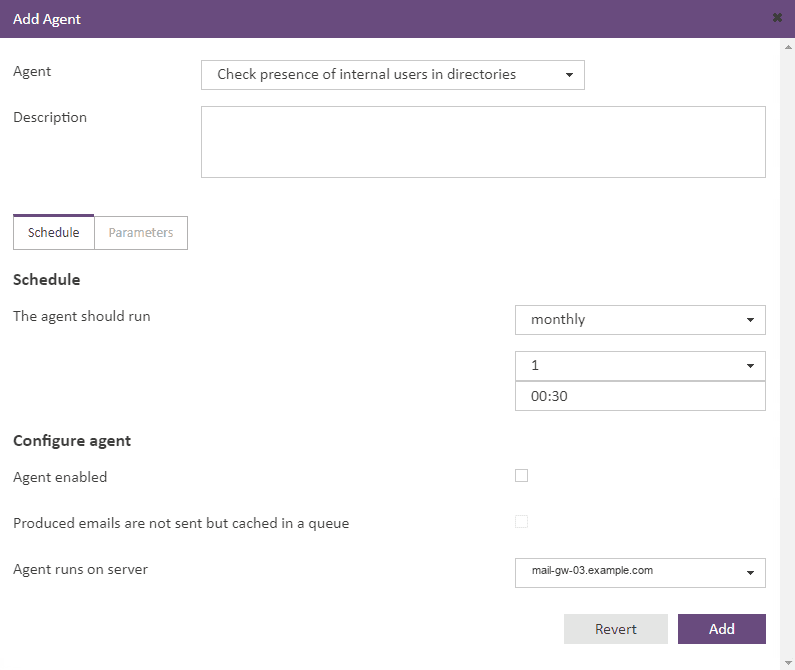
Here, the agent runs monthly on the 1st at 12:30 AM. Use “Agent runs on server” to specify the executing node in the cluster.
| Field | Recommendation | Rationale |
|---|---|---|
| The agent should run | monthly, day 1, 00:30 | outside business hours; monthly is sufficient for license hygiene |
| Agent enabled | enable only after the test run | see Step 5 |
| Produced emails are not sent but cached in a queue | enable for the first run | test run without sending email |
| Agent runs on server | one node in the cluster | the job should run on only one node |
4.2 “Parameters” tab
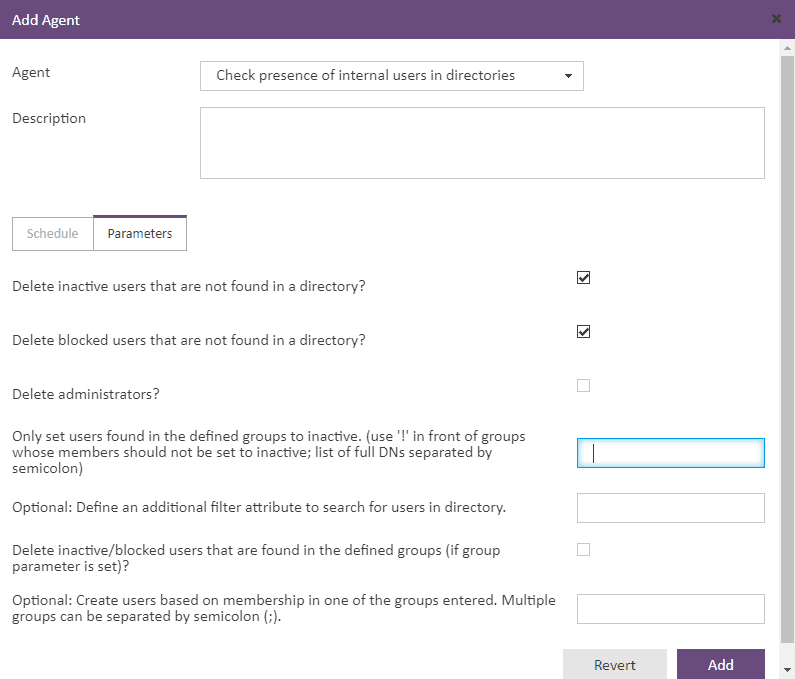
The parameters control which internal users are deleted, disabled, or newly created.
| Parameter | Recommendation | Effect |
|---|---|---|
| Delete inactive users that are not found in a directory? | enable | Inactive internal users without an AD entry are deleted. This is the core of license cleanup. |
| Delete blocked users that are not found in a directory? | enable | Blocked internal users without an AD entry are also deleted |
| Delete administrators? | leave blank | Administrator accounts should not be deleted automatically |
| Only set users found in the defined groups to inactive | optional | Users are set to inactive rather than deleted. A leading ! excludes the members of the specified group. Separate DNs with ;. |
| Additional filter attribute | optional | Additional attribute for searching the directory, for example proxyAddresses |
| Delete inactive/blocked users that are found in the defined groups | leave blank | applies only when the group parameter is set |
| Create users based on group membership | optional | Creates new internal users based on AD group membership. Separate multiple groups with ;. |
Negation in the “Only set users found in the defined groups to inactive” field works by placing ! before a group DN. Members of this group are excluded from the action:
CN=Mitarbeiter,OU=Groups,DC=corp,DC=example,DC=com;!CN=Dienstkonten,OU=Groups,DC=corp,DC=example,DC=comIn this example, users in the Employees group are set to inactive when absent from AD, while members of the Service Accounts group remain untouched.
Step 5: Test run and validation
Do not run the agent against production data without a test run. Instead, proceed in this order:
-
Enable queue mode using the “Produced emails are not sent but cached in a queue” option. The agent determines the planned actions without sending email.
-
Run it manually and review the agent log: how many users would be affected, and are unexpected accounts such as functional mailboxes in the list?
-
Plausibility check against
**ldapsearch**: The number of users not found in AD should match your manual LDAP query. -
If the result is correct, disable queue mode, enable Agent enabled, and activate the schedule.
-
After the first production run, check Settings → Overview → User Information again. Available Users should then be positive again.
Troubleshooting
| Symptom | Cause | Action |
|---|---|---|
Can't contact LDAP server | Port 636 unreachable / incorrect host | Check with Test-NetConnection or nc -vz, and verify the firewall |
Invalid credentials (49) | Incorrect Bind DN or password | Specify the Bind DN as a full DN, not as user@domain |
certificate verify failed | CA unknown to the trust store | Import the root or issuing CA |
| Hostname mismatch in TLS | Connecting via IP instead of FQDN | Use the certificate CN/SAN as the host |
Referral (10) | Search crosses the domain boundary | Use the Global Catalog on port 3269 instead of a DC on 636 |
| Disabled users are not detected | Missing userAccountControl-filter | Use bit matching rule :1.2.840.113556.1.4.803:=2 |
| Agent deletes too many accounts | Filter too broad / incorrect Base DN | Test in queue mode, restrict the Base DN |
With the -d 1 flag, ldapsearch provides debug output for connection establishment:
ldapsearch -d 1 -x -H ldaps://dc01.corp.example.com:636 ...This lets you see whether the TLS handshake or only the bind fails. The totemomail GUI does not show you this distinction beneath its generic error message.
Security
-
Read-only service account. The bind user needs read permissions only.
-
LDAPS instead of LDAP. Use port 636 or 3269. LDAP on port 389 transmits the bind password in clear text. Active Directory is increasingly enforcing secured connections with LDAP Channel Binding and Signing anyway.
-
Password rotation.
PasswordNeverExpiresis operationally practical. Document the account and rotate the password on schedule. -
Monitoring. Monitor Available Users (ideally through alerting) instead of waiting for the bell warning.
-
First run in queue mode. An incorrect filter can affect a large number of accounts.
The safe process in four steps
Reaching the license limit is not a technical defect but the result of a missing offboarding process. The sustainable solution is regular synchronization with Active Directory as the authoritative source. The order is crucial:
-
Verify the LDAP connection on the command line (
ldapsearch,openssl s_client,Test-NetConnection) -
Configure the connection in totemomail
-
Validate the agent in queue mode
-
Put the agent into production
Those who follow this order resolve the immediate licensing issue and prevent it from returning.

Comments
Comments are loaded from GitHub / Giscus.